
Shape results with Additional Rules
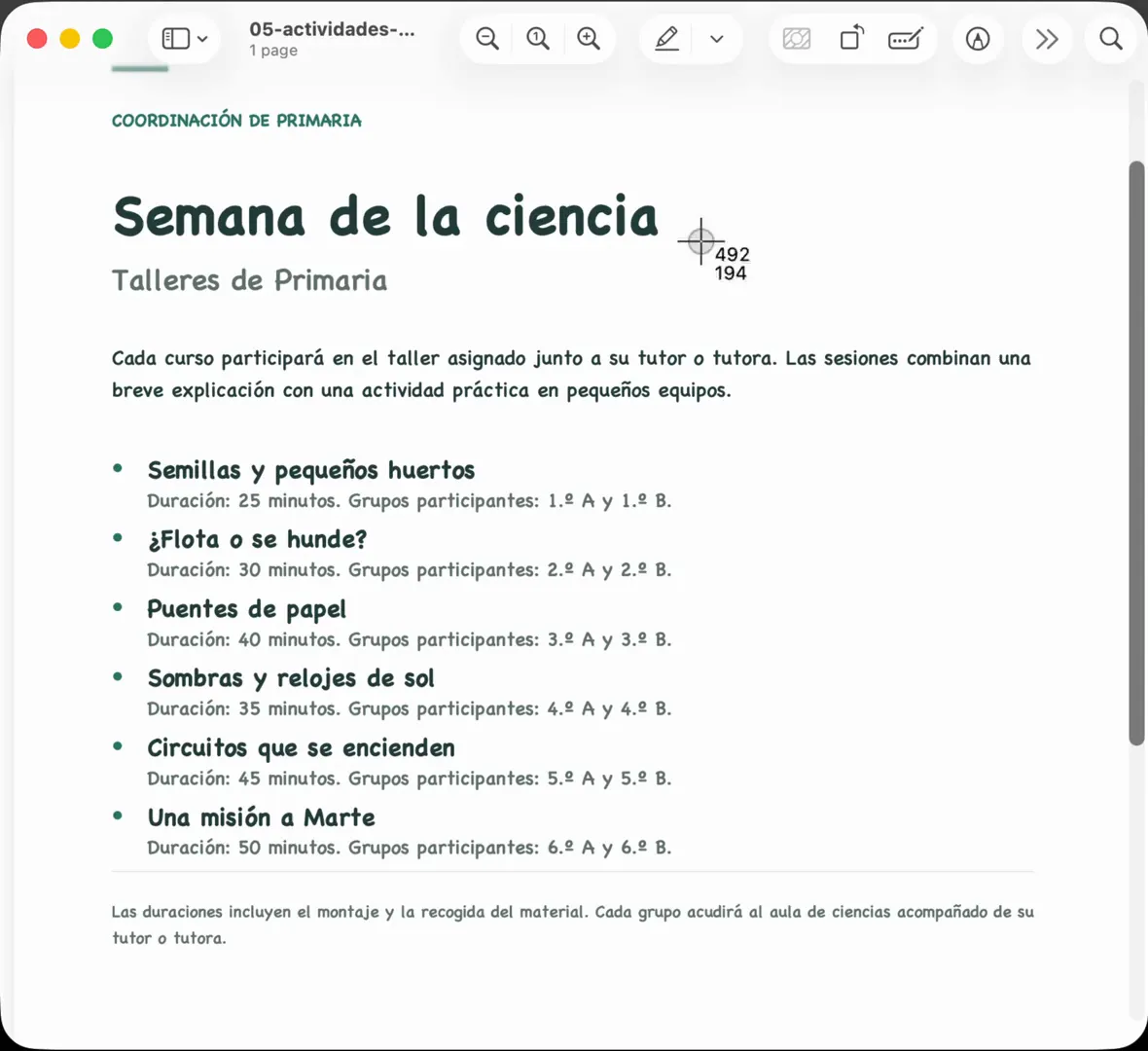
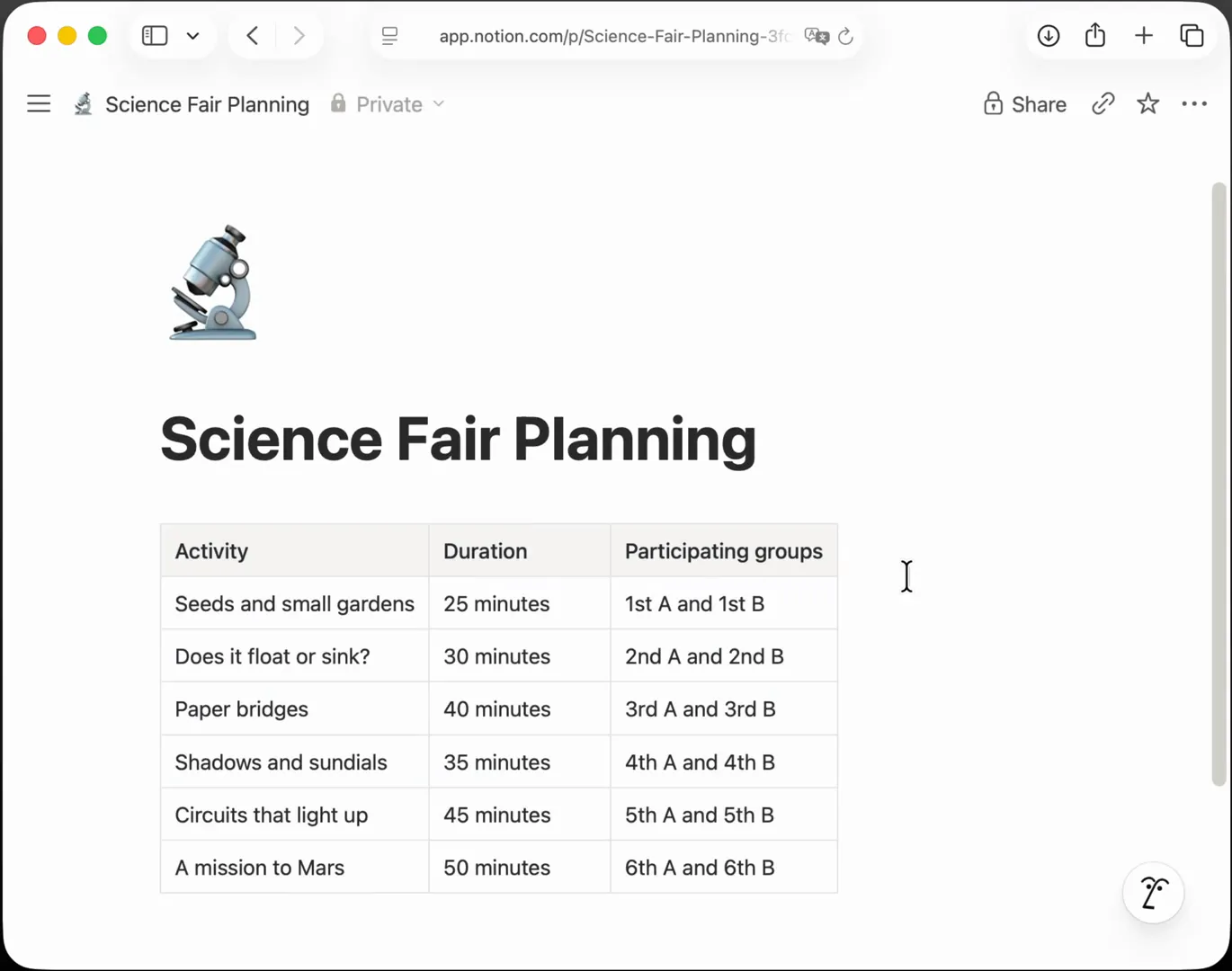
Additional Rules are instructions in your own words, saved in a Profile. isoboard applies them to every capture made with that Profile, so the result arrives the way you need it. Turn lists into tables, keep only the fields you care about, normalize dates and units, strip clutter or change the language. isOCR™ only extracts content, so with isOCR the rules run on a second, text-capable model.
What can Additional Rules do?
Section titled “What can Additional Rules do?”Anything you can describe about the content of the result. A few rules work well together, and you can write them as a short list.
| Goal | Example rules |
|---|---|
| Restructure | Format as a table. Turn the steps into a numbered list. One row per person. |
| Filter | Keep only names and emails. Remove answer keys. Drop the footer and page numbers. |
| Normalize | Use year-month-day dates. Convert units to metric. Round numbers to two decimals. |
| Clean up | Fix spelling and grammar. Remove citation numbers. Expand abbreviations. |
| Translate | Translate to English. Keep product names in the original language. |
| Highlight | Bold every deadline. Put totals in a final row. Mark prices over 100 in red. |
Rules change the content. isoboard still cleans the result so that it is safe to paste, and rules cannot turn off that cleanup.
How do I add Additional Rules to a Profile?
Section titled “How do I add Additional Rules to a Profile?”- Open the Profiles tab and select a Profile, or create one with the plus button.
- In Rules, write your instructions in Additional Rules.
- If the Profile uses isOCR, choose a text-capable model for the rules. See which model applies the rules.
- Capture as usual. The pasted result follows your rules.
Rules save as you type and apply from your next capture. Keep one Profile per job, such as a “Contacts” Profile that keeps names and emails and a “Notes” Profile that translates, and pick the one you need from the menu bar or with its own shortcut.
How are rules applied?
Section titled “How are rules applied?”The Apply rules in a separate pass switch chooses between two ways.
| Same request (switch off) | Separate pass (switch on) | |
|---|---|---|
| Model requests | One. The model reads the image and applies the rules together. | Two. The first converts the image. The second applies the rules to the converted content. |
| What the rules model sees | The image and the rules | The converted content only, never the image |
| Models | The one model of the Profile | The same model, or a different text-capable one |
| Speed and cost | One request | Another request, which may take longer or cost more |
Without rules, isoboard always makes one request. Images in your capture still appear in the result with a separate pass. The rules step can keep, remove or reorder them, but it cannot create new ones.
Which model applies the rules?
Section titled “Which model applies the rules?”In the Rules section, Model usage has two options:
- Use the same model reuses the Profile’s model.
- Use a different model shows a second Provider and model picker, limited to models that can output text.
isoboard never falls back to another model. If the second model is missing, the Profile shows what is missing and the capture does not run.
Why do rules need a separate pass with isOCR?
Section titled “Why do rules need a separate pass with isOCR?”isOCR extracts text, tables and images but cannot follow custom instructions. With isOCR as the Profile’s model, rules always run in a separate pass, and the editor asks you to pick a text-capable model. isoboard does not choose a provider for you.
A common setup: isOCR converts the image on your Mac, and a model from OpenAI, Anthropic or Gemini applies the rules. Only the converted content is sent, never the image. See choose a local model or an AI provider.
What leaves my Mac when I use rules?
Section titled “What leaves my Mac when I use rules?”| Setup | What is sent to a provider |
|---|---|
| isOCR converts, a provider applies the rules | The converted content. Not the image. |
| A provider does both in the same request | The image and the rules |
| A provider does both in a separate pass | The image in the first request, the converted content in the second |
See what leaves your Mac.
How do Additional Rules work with Tables, Colors and Images?
Section titled “How do Additional Rules work with Tables, Colors and Images?”The Tables, Colors and Images switches in the Profile apply after the rules. A rule that asks for a table still follows your Tables switch. If Tables is off, the table is written as lines of text. See set up Profiles.
Can I see whether rules were applied?
Section titled “Can I see whether rules were applied?”Yes. In History, an entry shows whether Additional Rules were applied in the first pass or in a separate pass. isoboard does not save the text of your rules in History.
Frequently asked questions
Section titled “Frequently asked questions”Can isOCR translate or reformat text?
Not by itself. isOCR extracts text and structure. Add a text-capable model for the rules in the same Profile, and isOCR still does the extraction on your Mac.
Does a separate pass cost more?
It makes a second model request, so a provider may charge for both. See choose a local model or an AI provider.
How specific should my rules be?
Short, concrete rules work best. A very broad rule can change content in ways you did not intend, so try a new rule on a sample capture first and refine it.