
Use isoboard from the menu bar
isoboard lives in the macOS menu bar. Click its icon to open the settings window. Open its menu to start a capture, copy one of your five most recent results or quit. The icon animates while isoboard processes a capture, and its tooltip and status row show what is happening.
How do I open the isoboard menu?
Section titled “How do I open the isoboard menu?”- Click the isoboard icon to open and focus the isoboard window.
- Right-click the icon to open the menu.
The window shortcut, ⌘ Cmd + ⌥ Option + Z by default, also opens and focuses the window. Closing the window hides it and keeps isoboard running. To quit, use Quit isoboard in the menu.
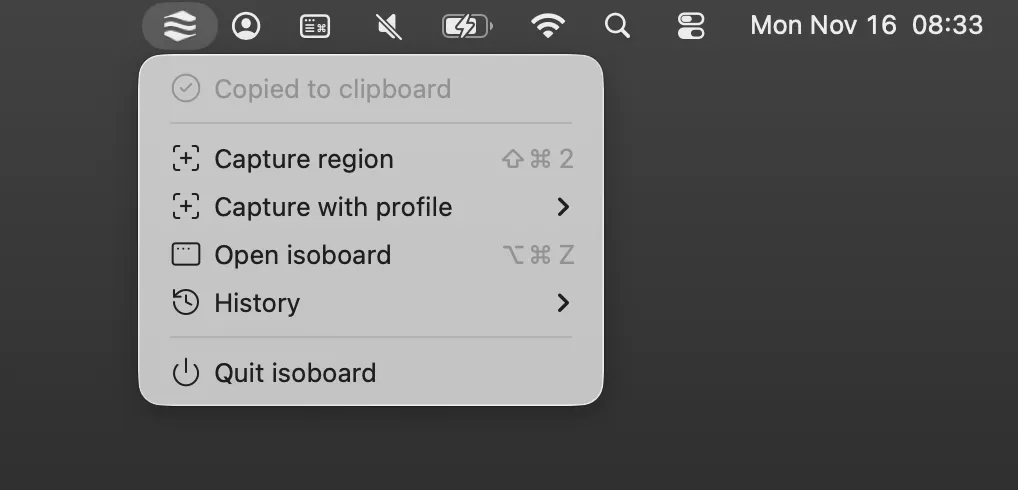
What does each menu item do?
Section titled “What does each menu item do?”| Item | What it does |
|---|---|
| Status row (top, greyed out) | Shows the latest capture status. See the table below. |
| Capture region | Starts a capture with the active Profile. Shows your capture shortcut. Disabled while a capture runs or setup is incomplete. |
| Capture with profile | A submenu of your Profiles. Select one to capture with it once. The active Profile, marked with a checkmark, stays the same. |
| Open isoboard | Opens and focuses the isoboard window. Shows the window shortcut. |
| History | A submenu of your five most recent successful results. Select one to copy it back to the clipboard. |
| View all history | Opens the History tab, including failed attempts. |
| Quit isoboard | Quits isoboard. |
Each History entry shows its capture time, with a date if it was captured before today, and the start of its text. Failed and pending captures do not appear here. See History.
A Profile in Capture with profile is greyed out until it is ready, for example while its model is missing or its provider is not connected. To change the active Profile, use the isoboard window. See set up Profiles.
What do the status messages mean?
Section titled “What do the status messages mean?”The status row and the icon’s tooltip use the same words:
| Status | Meaning |
|---|---|
| No capture in progress | isoboard is ready |
| Select a region | Waiting for you to drag over the screen |
| Downloading model · 42% | A local model is downloading, with its progress |
| Loading model | A local model is starting |
| Processing image | The model is working |
| Copied to clipboard | The result is ready to paste |
| Capture cancelled | You cancelled the capture |
| Screen access needed | Screen Recording permission is missing. See permissions. |
| Provider failed | The AI provider returned an error. See fix AI provider errors. |
| Clipboard failed | isoboard could not write to the clipboard |
| Capture failed | Another capture error. Open History for the message. |
The icon animates while a capture is processing and stays plain otherwise. Click the capture overlay, or open View all history, to see the details of a failure.
How do I start isoboard automatically?
Section titled “How do I start isoboard automatically?”Turn on Launch at login in the Settings tab → General. isoboard then starts in the menu bar with its window hidden. See grant macOS permissions.
Frequently asked questions
Section titled “Frequently asked questions”Why is Capture region greyed out?
A capture is running, or setup is incomplete. Check the footer in the isoboard window for Setup incomplete, Screen access required, Profile needs attention or Shortcut unavailable. See capture and permission problems.
I closed the window. Is isoboard still running?
Yes. Closing the window hides it. The menu bar icon stays, and your shortcuts keep working. Choose Quit isoboard to stop it.